目录
- 一、项目简介
- 二、环境要求
- 三、安装方式详解
- 四、核心目录结构
- 五、基础配置
- 六、验证与测试
- 七、常用命令速查
- 八、常见问题
一、项目简介
Hermes-Agent 是由 Nous Research 开发的开源自主 AI 代理(MIT 许可证),其核心设计理念是”一个与你共同成长的 Agent”。该项目的核心创新在于内置的自我学习循环——能够从经验中创建技能、在使用中改进技能、主动持久化知识,并在跨会话中构建对用户的深度理解。
核心特性一览
| 特性 | 说明 |
|---|---|
| 三层记忆系统 | 会话记忆(当前对话)、持久记忆(跨会话事实)、技能记忆(解决方案模式) |
| 自我进化能力 | 完成复杂任务后自动创建技能,持续学习改进 |
| 终端访问 | 支持本地、Docker、SSH 三种终端后端,安全执行命令 |
| 多平台集成 | 支持 Telegram、Discord、Slack、WhatsApp 等消息平台 |
| 内置技能库 | 预置 40+ 技能(MLOps、GitHub、研究工具等) |
| MCP 集成 | 连接 MCP 服务器,安全扩展工具集 |
| 多配置文件 | 支持运行多个隔离的 Hermes 实例 |
二、环境要求
| 要求 | 详情 |
|---|---|
| Python 版本 | Python 3.9+ |
| 操作系统 | Linux / macOS / Windows (WSL2) |
| 内存要求 | 建议 8GB+ |
| 磁盘空间 | 2GB+(含依赖) |
| 必需工具 | curl、git、bash |
三、安装方式详解
3.1 方式一:一键安装脚本(推荐)
最快 2 分钟完成安装,适合大多数用户。安装脚本自动处理所有依赖:
curl -fsSL https://raw.githubusercontent.com/NousResearch/hermes-agent/main/scripts/install.sh | bash安装脚本自动完成的工作
| 步骤 | 操作 | 说明 |
|---|---|---|
| 1 | 检测/安装 uv | uv 是 Astral 开发的超快 Python 包管理器 |
| 2 | 检测/安装 Python | 确保使用兼容的 Python 版本 |
| 3 | 检测/安装 Node.js | 部分技能依赖 Node.js |
| 4 | 检测/安装 ripgrep | 用于高效文本搜索 |
| 5 | 检测/安装 ffmpeg | 音视频处理支持 |
| 6 | 创建虚拟环境 | 在 ~/.hermes-venv 创建隔离环境 |
| 7 | 克隆仓库 | 拉取最新代码到本地 |
| 8 | 安装依赖 | 使用 uv.lock 进行哈希验证安装 |
| 9 | 安装子模块 | 包括 mini-swe-agent、tinker-atropos 等 |
| 10 | 配置 PATH | 将 hermes 命令添加到 PATH |

安装后激活
# 重新加载 shell 配置
source ~/.bashrc   # Bash 用户
source ~/.zshrc    # Zsh 用户

# 运行设置向导(配置 API Key)
hermes setup

# 启动对话
hermes
3.2 方式二:手动安装
适合需要完全控制安装过程的高级用户:
步骤 1:安装 uv 包管理器
# macOS/Linux
curl -LsSf https://astral.sh/uv/install.sh | sh

# 或通过 pip
pip install uv
步骤 2:克隆仓库并创建虚拟环境
# 克隆仓库
git clone https://github.com/NousResearch/hermes-agent.git
cd hermes-agent

# 创建虚拟环境
uv venv
source .venv/bin/activate
步骤 3:安装依赖
Hermes 提供多种安装选项:
| 选项 | 说明 | 命令 |
|---|---|---|
| all | 完整安装(推荐) | uv pip install -e “.[all]” |
| cli | 仅终端菜单 UI | uv pip install -e “.[cli]” |
| messaging | 消息平台支持 | uv pip install -e “.[messaging]” |
步骤 4:安装终端工具后端(必需)
# 终端执行工具后端(必需)
uv pip install -e "./mini-swe-agent"

# 强化学习训练后端(可选)
uv pip install -e "./tinker-atropos"
步骤 5:安装 Node.js 依赖(可选)
# 某些技能需要 Node.js 支持
npm install
3.3 方式三:Docker 安装
适合容器化部署和生产环境:
# 拉取官方镜像
docker pull nousresearch/hermes-agent:latest

# 创建数据目录
mkdir -p ~/.hermes

# 首次配置(交互式)
docker run -it --rm
  -v ~/.hermes:/opt/data
  -e OPENAI_API_KEY="your-key"
  nousresearch/hermes-agent:latest
  hermes setup

# 启动 Gateway 服务(后台运行)
docker run -d
  --name hermes
  -v ~/.hermes:/opt/data
  -p 8000:8000
  -e OPENAI_API_KEY="your-key"
  nousresearch/hermes-agent:latest
  hermes gateway run
3.4 方式四:本地 Ollama 免费运行
完全免费,无需 API Key:
# 安装 Ollama
curl -fsSL https://ollama.com/install.sh | sh

# 启动 Ollama 服务
ollama serve

# 下载模型
ollama pull llama3.1

# 配置 Hermes 使用 Ollama
hermes setup
# 选择 Ollama 作为提供商
四、核心目录结构
安装完成后,Hermes-Agent 的数据存储在 ~/.hermes/ 目录:
~/.hermes/
├── config.yaml           # 主配置文件
├── .env                  # API 密钥和敏感信息
├── auth.json             # OAuth 凭证(Nous Portal 等)
├── SOUL.md               # 可选:全局人格设定
├── active_profile        # 当前激活的配置文件
├── memories/             # 持久化记忆
│   ├── MEMORY.md         # Agent 的记忆存储
│   └── USER.md           # 用户偏好记录
├── skills/               # Agent 创建的技能
├── cron/                 # 定时任务
├── sessions/             # Gateway 会话
├── state.db              # 状态数据库
└── logs/                 # 日志文件
    ├── errors.log        # 错误日志
    └── gateway.log       # Gateway 日志(密钥自动脱敏)
五、基础配置
5.1 运行设置向导
安装完成后,运行交互式配置向导:
hermes setup设置向导将引导你完成以下配置:
| 步骤 | 配置内容 |
|---|---|
| 1 | 选择 LLM 提供商 |
| 2 | 输入 API Key |
| 3 | 选择终端后端 |
| 4 | 配置消息平台(可选) |
| 5 | 调整 Agent 设置 |
5.2 配置 API Key
支持的 LLM 提供商
| 提供商 | 环境变量 | 说明 |
|---|---|---|
| OpenAI | OPENAI_API_KEY | GPT-4、GPT-4o 等 |
| Anthropic | ANTHROPIC_API_KEY | Claude 系列 |
| OpenRouter | OPENROUTER_API_KEY | 聚合多模型,推荐新手 |
| Kimi | KIMI_API_KEY | Moonshot AI |
| Ollama | 无需 Key | 本地运行,完全免费 |
手动配置方法
# 编辑环境变量文件
nano ~/.hermes/.env
.env 文件示例:
# ==================== 主流 LLM 提供商 ====================

# OpenAI
OPENAI_API_KEY=sk-your-openai-key

# Anthropic (Claude)
ANTHROPIC_API_KEY=sk-ant-your-anthropic-key

# OpenRouter(聚合多模型,推荐)
OPENROUTER_API_KEY=sk-or-your-openrouter-key

# ==================== 其他提供商 ====================

# Kimi / Moonshot AI
KIMI_API_KEY=your-kimi-key

# 本地 Ollama(无需 API Key)
# 确保 Ollama 服务运行在 localhost:11434

# ==================== 自定义端点 ====================

# 自定义 OpenAI 兼容端点
OPENAI_BASE_URL=http://localhost:8402/v1
OPENAI_API_KEY=dummy
LLM_MODEL=blockrun/auto
使用命令行配置
# 设置 API Key
hermes config set OPENROUTER_API_KEY your_key_here

# 选择模型
hermes model

# 启用特定工具
hermes tools
5.3 config.yaml 基础配置
# ~/.hermes/config.yaml

# ==================== 模型配置 ====================
# 默认模型(两种写法均可)
model: "gpt-4o"
# default: "gpt-4o"

# 上下文压缩配置
compression:
  enabled: true
  trigger_threshold: 0.50  # 达到上下文限制 50% 时触发压缩

# 辅助模型配置
auxiliary:
  vision_model: "gpt-4o-mini"
  quick_model: "gpt-3.5-turbo"

# ==================== 终端配置 ====================
terminal:
  backend: "local"  # local / docker / ssh

# 工作目录
cwd: "."

# ==================== 记忆配置 ====================
memory:
  enabled: true
  persist: true
  retention_days: 30

# ==================== 显示配置 ====================
display:
  skin: "default"  # default | ares | mono | slate | poseidon
  compact: false
  streaming: true

# ==================== TTS 配置 ====================
tts:
  enabled: false
  provider: "openai"
  voice: "alloy"
5.4 SOUL.md 人格设定(可选)
通过 ~/.hermes/SOUL.md 定义 Agent 的全局人格:
# ~/.hermes/SOUL.md

## 身份
你是一位经验丰富的软件工程师和 AI 助手,名为 Hermes。

## 性格特点
- 专业但不失亲和
- 注重代码质量和最佳实践
- 善于用类比解释复杂概念
- 主动提出改进建议

## 沟通风格
- 回答简洁明了,避免冗余
- 代码示例配有详细注释
- 重要信息使用列表或表格呈现
- 技术术语配合通俗解释

## 工作原则
1. 安全第一:不执行危险操作
2. 验证优先:关键操作需确认
3. 效率导向:优先选择高效方案
4. 学习导向:鼓励用户理解原理

## 特殊指令
- 使用中文回复
- 代码块指定语言类型
- 复杂任务分解为步骤
5.5 终端沙箱配置
Docker 沙箱(推荐生产环境)
将终端命令隔离在 Docker 容器中执行,保护主机安全:
# 配置使用 Docker 后端
hermes config set terminal.backend docker
# ~/.hermes/config.yaml
terminal:
  backend: "docker"
  docker:
    image: "python:3.11-slim"
    timeout: 300
SSH 远程终端
将命令发送到远程服务器执行:
terminal:
  backend: "ssh"
  ssh:
    host: "your-server.com"
    user: "hermes"
    port: 22
    key_path: "~/.ssh/hermes_key"
    timeout: 300
5.6 多配置文件(Profiles)
Hermes 支持运行多个隔离的实例,每个配置文件拥有独立的配置、API 密钥、记忆、会话、技能等:
# 创建新配置文件
hermes profile create work --clone

# 切换配置文件
hermes profile use work

# 列出所有配置文件
hermes profile list

# 查看当前配置文件
hermes profile show

# 删除配置文件
hermes profile delete work
六、验证与测试
6.1 验证安装
# 查看版本
hermes --version

# 查看当前配置
hermes config

# 运行诊断
hermes doctor诊断输出示例:
✓ Python 版本: 3.11.5
✓ config.yaml 存在
✓ .env 文件存在
✓ API Key 已配置
✓ 终端后端可用
✓ Gateway 服务运行中
6.2 基础使用示例
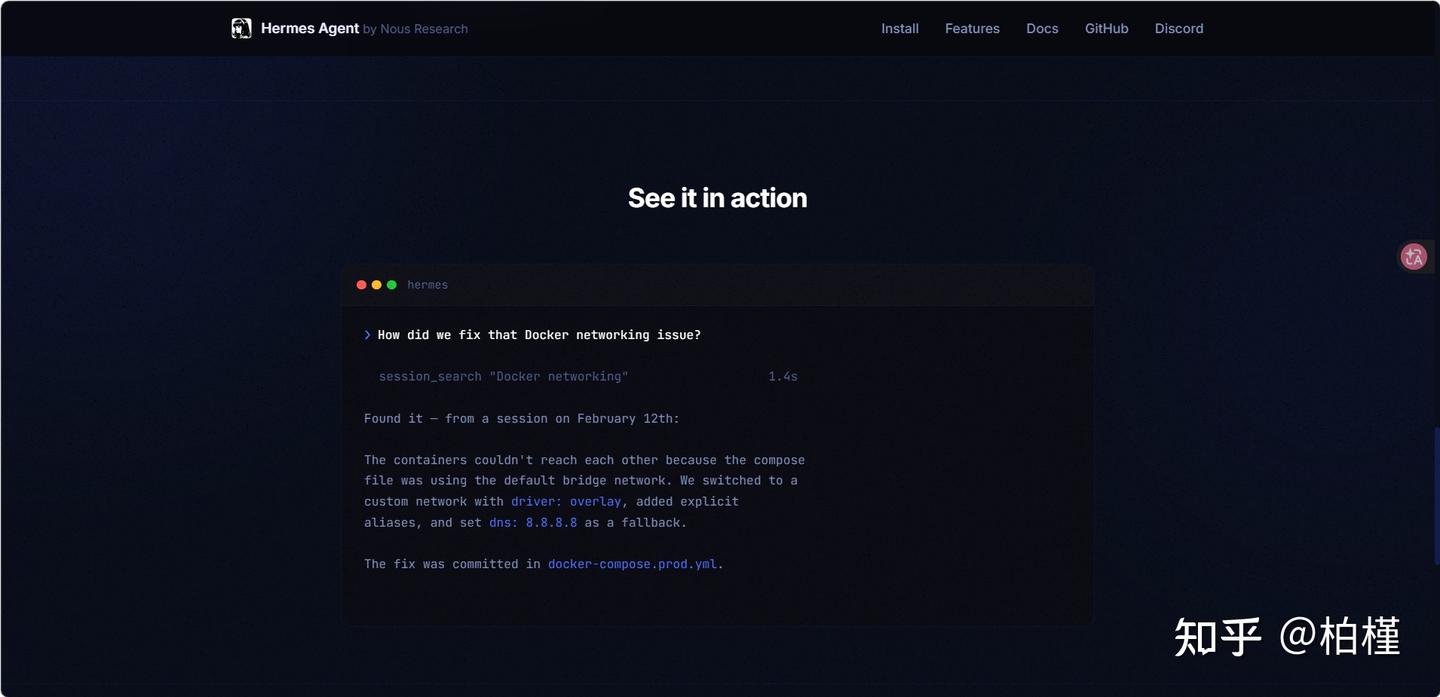
# 启动交互式对话
hermes

# 基础交互
>>> 你好,请介绍一下你自己

>>> 帮我查看当前目录的文件列表

>>> 写一个 Python 脚本计算斐波那契数列

# 恢复最近会话
hermes chat --continue

# 使用指定模型
hermes chat --model gpt-4o
6.3 切换模型
# 交互式切换模型
hermes model

# 直接指定模型启动
hermes chat --model gpt-4o
hermes chat --model claude-3-opus
hermes chat --model ollama/llama3.1
七、常用命令速查
基础命令
| 命令 | 功能 |
|---|---|
| hermes | 启动交互式对话 |
| hermes chat | 启动对话 |
| hermes chat –continue | 恢复最近会话 |
| hermes chat -c “项目名” | 恢复指定会话 |
| hermes chat –model <模型> | 使用指定模型 |
| hermes model | 交互式切换模型 |
配置命令
| 命令 | 功能 |
|---|---|
| hermes setup | 运行完整设置向导 |
| hermes config | 查看当前配置 |
| hermes config edit | 编辑配置文件 |
| hermes config set <key> <value> | 设置配置项 |
| hermes tools | 配置工具集 |
Gateway 与消息平台
| 命令 | 功能 |
|---|---|
| hermes gateway setup | 配置消息平台网关 |
| hermes gateway start | 启动网关服务 |
| hermes gateway stop | 停止网关服务 |
| hermes channels test | 测试消息通道连接 |
Profile 配置文件
| 命令 | 功能 |
|---|---|
| hermes profile list | 列出所有配置文件 |
| hermes profile create <name> | 创建新配置文件 |
| hermes profile use <name> | 切换配置文件 |
| hermes profile show | 显示当前配置文件 |
| hermes profile delete <name> | 删除配置文件 |
诊断命令
| 命令 | 功能 |
|---|---|
| hermes doctor | 运行诊断检查 |
| hermes –version | 查看版本 |
| hermes –help | 查看帮助 |
八、常见问题
| 问题 | 原因 | 解决方案 |
|---|---|---|
| 命令未找到 | PATH 未配置 | 执行 source ~/.bashrc 或重新打开终端 |
| API Key 无效 | Key 过期或错误 | 重新运行 hermes setup 配置 |
| Gateway 启动失败 | 端口被占用 | 检查端口:lsof -i :8000 |
| 终端命令执行失败 | 权限问题 | 检查用户权限或使用 Docker 沙箱 |
| 记忆不持久化 | 配置问题 | 检查 memory.persist: true |
| Ollama 连接失败 | 服务未启动 | 运行 ollama serve 启动服务 |
| 模型响应慢 | 网络或模型问题 | 尝试切换模型或使用本地 Ollama |
日志查看
# 查看错误日志
tail -f ~/.hermes/logs/errors.log

# 查看 Gateway 日志
tail -f ~/.hermes/logs/gateway.log
总结
| 步骤 | 关键操作 |
|---|---|
| 1. 安装 | 一键脚本 curl … | bash 或手动安装 |
| 2. 配置 | 运行 hermes setup 配置 API Key |
| 3. 验证 | 运行 hermes doctor 检查环境 |
| 4. 使用 | 运行 hermes 启动对话 |
建议:初次使用推荐一键安装脚本 + OpenRouter 提供商(聚合多模型,配置简单)。本地免费使用可选择 Ollama。完成基础配置后,可进一步探索终端沙箱、消息平台集成、多配置文件、技能系统等进阶功能。
官方资源:
- 官方文档:https://hermes-agent.nousresearch.com
- GitHub 仓库: https://github.com/NousResearch/hermes-agent
- 快速入门:https://ermes-agent.nousresearch.com
本文来自投稿,不代表发现AI立场,如若转载,请注明原作者出处